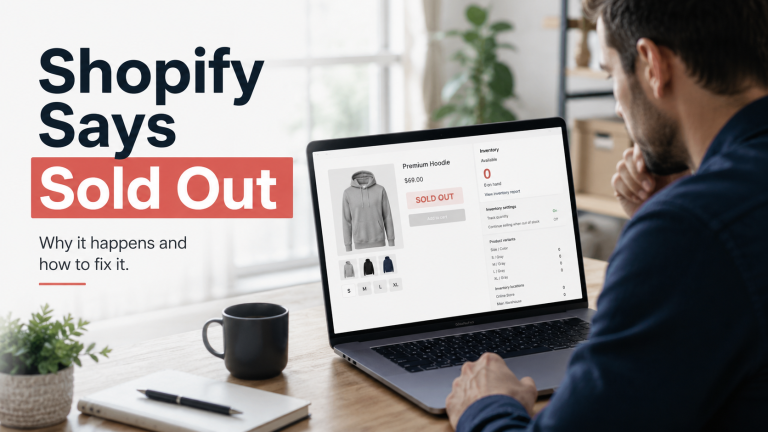
You have turned off inventory tracking, but your Shopify product still says Sold Out. In some cases, the product may show 0 available, or the quantity may return to zero after you save it. This can prevent customers from placing orders even when you do not want to limit inventory.
This can be frustrating when you’re managing an online store, especially when customers in Dubai, Abu Dhabi, Sharjah and other parts of the UAE are trying to place an order. But inventory tracking is not always the cause. Product variants, inventory locations, apps, sales channels or theme customisations can also affect whether a product is available to buy.
Why Does Shopify Say ‘Sold Out’ When Inventory Tracking Is Off?
Turning off inventory tracking does not always fix product availability issues. Shopify can still show a product as sold out when a selected variant is unavailable or the product is not available on the right sales channel. Other product settings can also affect availability.
So, check the product setup before changing the inventory quantity again. If a variant, location or connected app causes the problem, changing the stock number alone will not fix it.
Is the Product Available on Your Shopify Online Store?
First, check whether the product is active and available on the Online Store sales channel. A product can have the correct inventory settings but still be unavailable to customers if it has not been published correctly.
If the product appears active in Shopify but shows Sold Out on the storefront, check whether the issue affects the entire product or only a specific option. This can help narrow the problem down to either the product setup or an individual variant.
Can Shopify Product Variants Cause a Sold-Out Error?
Yes. Each variant can have its own inventory and availability settings. A product with options such as size, colour, or material may appear available until a customer selects a variant that Shopify considers unavailable.
Review each variant individually, especially if all variants show 0 available. A quantity that resets to zero after saving is usually a sign that something else, not a one-time input error, is controlling that number.
For example, a product may have three variants, but only one variant may be configured correctly. Customers selecting either of the other options could still see the product as sold out.
Should You Enable Continue Selling When Out of Stock?
This setting works differently from disabling inventory tracking. When Shopify tracks inventory, ‘Continue selling when out of stock’ lets customers place orders even after the available quantity reaches zero.
This option works well for pre-orders, backorders or products you can fulfil after receiving an order. However, make sure it fits your fulfilment process. If you do not want Shopify to track inventory, check the tracking settings for each relevant product or variant.
Can Shopify Inventory Locations Affect Product Availability?
Yes. Shopify manages inventory through locations, so you need to check where Shopify assigns the product quantity. Your online store may not use the same location to fulfil orders.
For example, you may have stock in your warehouse, but Shopify can still show the product as unavailable if you assign that inventory to the wrong location. This matters even more when you manage stock across multiple locations or warehouses.
Check the location assigned to the product and confirm that your online store uses it for fulfilment. If the two do not match, Shopify can show the product as unavailable even when you have stock.
Why Does Shopify Inventory Go Back to 0 After Saving?
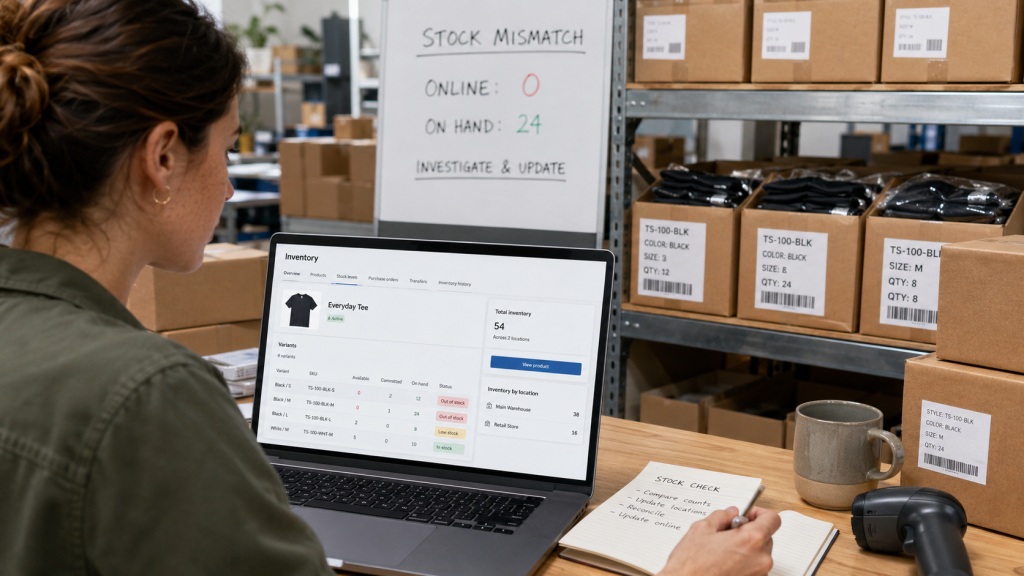
If you update the inventory quantity, save the product, and later find that it has returned to zero, something may be changing the value after your manual update.
Possible causes include:
- A connected third-party app
- An automated workflow
- An incorrect inventory location
- Variant configuration issues
- A custom integration updating stock data
Instead of entering the quantity again, check what could be controlling the inventory value. Repeated manual corrections may only temporarily change the number if another process continues to update it.
Could a Shopify App Be Causing the Problem?
Shopify apps that manage inventory, fulfilment, product data or synchronisation can affect product quantities. If the problem started after installing or configuring an app, reviewing that connection can help identify whether it is updating inventory automatically.
You don’t need to remove every app immediately. Start by identifying which ones have access to product or inventory data; that narrows the list considerably before you touch anything.
Could Your Shopify Theme Show the Wrong Stock Status?
Sometimes the Shopify admin settings are correct, but the storefront still displays Sold Out. In this situation, the issue may be related to the Shopify theme or custom product-page code.
A customised theme can contain logic that controls how product availability is displayed. If the inventory and product settings appear correct in Shopify but the website continues to show the wrong status, the theme setup may need to be reviewed.
This is particularly worth checking after a theme update, custom development or changes to the product page. Proper Shopify website development and customisation can help ensure that custom functionality does not conflict with normal product availability.
What Should UAE Shopify Store Owners Check First?
Before looking for a complex solution, review the basic Shopify setup. In many cases, the problem can be identified by checking the product configuration and how inventory is managed.
Check:
- Product status and online store availability
- Individual product variants
- Inventory tracking settings
- Continue selling when out of stock
- Inventory locations
- Connected apps and workflows
- Theme or custom code changes
This approach helps separate a simple configuration issue from a more technical Shopify problem.
When Should You Ask a Shopify Expert for Help?
If you have checked the product, variants, locations and inventory settings but Shopify still resets quantities or incorrectly shows products as sold out, the issue may require a deeper technical review.
This can happen when custom code, apps or connected workflows are affecting how Shopify handles product availability. For more complex cases, reviewing the store configuration is often more useful than repeatedly changing inventory numbers. Businesses can also benefit from Shopify app and integration support when connected systems or custom workflows affect store behaviour.
If a technical issue needs further investigation, MAQ can review the existing Shopify setup and identify whether the problem is related to configuration, customisation or an integration. The goal should be to fix the underlying cause rather than apply unnecessary changes to the store.
Final Thoughts
When Shopify says sold out even though inventory tracking is off, the issue is not always the inventory setting. Product variants, inventory locations, apps, sales-channel availability, and theme customisations can all affect whether customers can purchase a product.
Start with the basic Shopify settings and identify where the availability issue begins. If everything appears correctly configured but the product still shows as unavailable or inventory repeatedly resets, investigating the store’s technical setup can help identify the actual cause and restore correct product availability.
Contact MAQ Computer Services LLC.
Official Shopify Partner — UAE
Phone: +971 55 494 3599 | +971 50 708 0116
Email: info@maquae.com