
Managing an online store involves more than adding products and processing orders. Business owners also need to monitor sales, update inventory, manage customers, review performance, and coordinate daily operations. The Shopify admin dashboard brings these essential activities together in one place, helping merchants manage their businesses from a central interface.
Shopify has introduced a refreshed admin design to make the experience more consistent and easier to navigate. The updated interface includes changes to navigation, visual elements, and access to Sidekick, Shopify’s AI-powered assistant. For business owners, understanding these updates can make everyday store management more straightforward.
In this guide, we explore the Shopify admin panel, its important features, the updated navigation experience, and practical ways to manage your store effectively.
What is the Shopify Admin Dashboard?
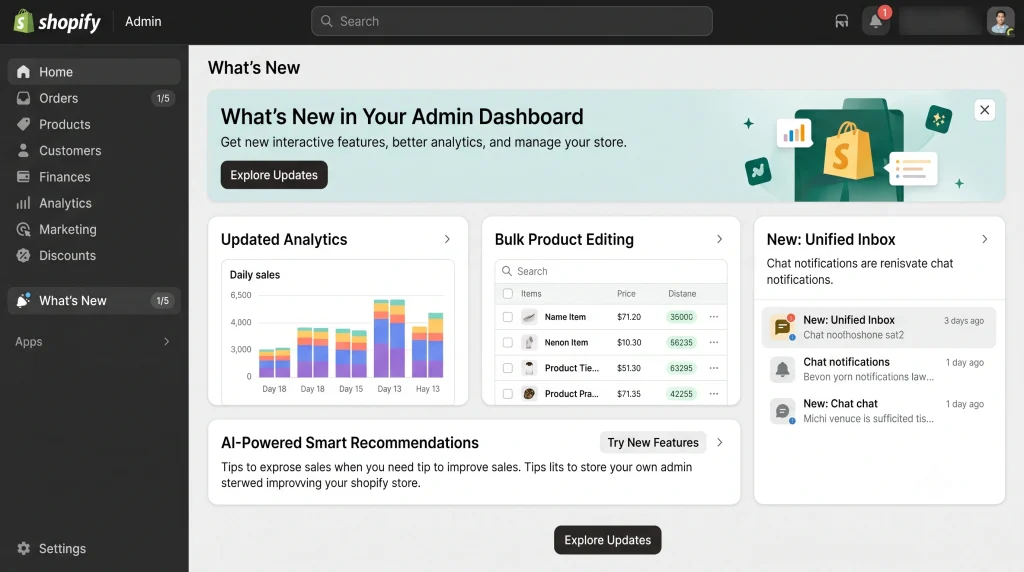
The Shopify admin dashboard is the central workspace where store owners and authorized team members manage their Shopify business. After logging in, users can access important store functions, including product management, orders, customers, marketing, analytics, and settings.
For example, a fashion retailer can update product details, review incoming orders, adjust stock availability, and check sales performance without using separate systems for every task.
The dashboard also supports business growth by allowing merchants to configure store settings, connect applications, manage staff permissions, and extend store functionality as their requirements change.
Businesses planning a new store can explore Shopify store setup and development services to understand how professional configuration can support their operational needs.
What’s new in the Shopify Admin Interface?
Shopify began rolling out its refreshed admin design in September 2026. The update focuses on the overall interface, navigation, and the way merchants interact with Sidekick.
Here are the main updates merchants should understand.
1. A Cleaner and More Consistent Layout
The redesigned Shopify admin interface introduces updated colours, typography, spacing, and icons. These visual changes create a more unified experience across different areas of the dashboard.
A clearer layout can help store owners identify important information and understand page sections more easily. This is particularly useful for merchants who regularly switch between products, orders, customers, and store settings.
2. Updated Shopify Admin Navigation
Navigation is an important part of everyday store management. Shopify has moved search, notifications, and the store selector into the side navigation area.
The sidebar can also be collapsed to create more workspace or expanded when users need access to navigation labels.
These adjustments can be useful for merchants who manage several tasks throughout the day. Instead of relying only on the previous layout, users can become familiar with the revised navigation and choose the view that suits their workflow.
3. Sidekick AI Access Across the Dashboard
Shopify Sidekick is an AI-powered assistant designed to help merchants work with their stores. In the refreshed admin experience, Sidekick appears as a floating chat at the bottom of each page.
This placement gives users access to the assistant while they work in different sections of the dashboard. Short questions can be handled through the chat, while more involved tasks can use an expanded panel.
Merchants can explore Sidekick’s available capabilities to understand how it may help with store related questions and workflows. As with any AI tool, users should review its suggestions and verify important information before making business decisions.
4. More Direct Interaction With Store Content
The refreshed design also places greater emphasis on helping users work with the information or item they want to change.
For example, when updating a product, merchants need to locate the relevant product information and its available editing controls. A clear interface can make this process easier to follow, especially for users who are still learning the Shopify admin panel.
The exact controls available will depend on the page, the user’s permissions, and the store’s configuration.
Key Features of the Shopify Admin Panel
Beyond its updated appearance, the Shopify admin dashboard provides several tools for running an online business.
Product and Inventory Management
Merchants can add new products, edit descriptions, upload images, organise collections, and manage product variants. Inventory tools help users monitor stock levels and update availability.
Keeping product information accurate is important for customer confidence and smooth order processing. Businesses with large catalogues may also benefit from integrations or custom workflows that reduce repetitive work.
Order Management
The orders section helps merchants review purchases and manage fulfilment-related activities. Depending on the order and fulfilment setup, users can check order details, update processing status, arrange shipping, and handle cancellations or refunds where permitted.
A consistent order-management process can help businesses keep customers informed and reduce operational confusion.
Customer Management
The Shopify admin panel provides access to customer profiles and relevant purchase information. Merchants can use this information to understand customer activity, manage records, and support customer service.
Businesses should ensure that customer information is handled responsibly and that staff access is limited to appropriate permissions.
Sales Reports and Analytics
Shopify reporting tools help merchants review business performance through available sales and store activity data. Depending on the plan and configuration, reports may cover sales trends, product performance, customer behaviour, and other useful metrics.
Reviewing these reports regularly can help business owners identify popular products, evaluate campaigns, and make informed decisions about inventory and marketing.
Apps, Integrations, and Store Settings
Merchants can use compatible applications and integrations to extend their store’s functionality. These may support accounting, shipping, customer support, marketing, inventory synchronisation, and other business processes.
Store settings also allow authorised users to manage important configurations. Before installing an app or changing a setting, check compatibility, permissions, costs, and the potential effect on existing workflows.
For stores that need functionality beyond standard applications, Shopify app development and integration services can help businesses assess their technical requirements.
Shopify Admin Dashboard vs. Shopify Storefront
The admin dashboard and storefront serve different purposes, even though they are connected.
The Shopify admin dashboard is the management area used by store owners and authorised staff. It supports tasks such as updating products, processing orders, reviewing reports, and configuring settings.
The Shopify storefront is the customer-facing website where visitors browse products, learn about the brand, and place orders.
Both areas influence the overall store experience. A well organised admin workflow helps teams manage operations, while a clear and responsive storefront makes it easier for customers to explore and purchase products.
If you are planning to build or improve your customer-facing website, explore e-commerce website development services in Dubai for information about store design, functionality, and development.
Practical Tips for Better Shopify Store Management
The dashboard provides useful tools, but an effective management process also depends on how your team uses them. Consider these practices:
- Review orders regularly: Check incoming purchases and outstanding fulfilment tasks to keep operations organised.
- Keep product information updated: Review prices, descriptions, images, variants, and stock availability.
- Monitor store performance: Use available analytics to understand sales trends and identify areas that need attention.
- Organise staff permissions: Give each team member the access needed for their responsibilities, rather than granting unnecessary permissions.
- Review installed applications: Remove unused apps where appropriate and check that active integrations continue to meet your requirements.
- Learn the updated navigation: Spend time exploring the revised sidebar, search, notifications, and store selector.
- Verify AI-generated suggestions: Use Sidekick as a support tool, but check important recommendations and changes before applying them.
These habits can help reduce avoidable mistakes and make day-to-day store management more consistent.
What should you do If the new Shopify Admin looks different?
Shopify’s updated interface is being rolled out gradually, so the experience may vary while the changes reach individual stores.
If your admin looks different from an older tutorial, start by checking the current navigation and locating the relevant section. You can also consult Shopify’s official help resources for up-to-date instructions.
If a feature is missing, check your account permissions, subscription plan, app configuration, and whether the relevant functionality is available to your store.
For technical issues involving custom themes, apps, integrations, or store configuration, document the problem and identify whether it relates to Shopify itself or a third-party solution before making changes.
Businesses that need additional technical assistance can explore Shopify development and support services to identify suitable next steps.
Conclusion
The refreshed Shopify admin dashboard makes store management more organized with improved navigation and easier access to essential tools. However, effective e-commerce operations also depend on the right setup, integrations, and storefront experience.
MAQ Computer Services LLC provides Shopify development and e-commerce solutions to help businesses improve their online stores
Frequently Asked Questions
1.Can Multiple Staff Members Log into the Shopify Admin Simultaneously?
Yes. Staff accounts operate independently with their own login credentials and two factor authentication. Team members can work concurrently across different modules without session conflicts, provided the store plan allows sufficient staff seats.
2.Is the Shopify Admin Accessible on Mobile Devices?
Store owners can access the admin through dedicated mobile applications on iOS and Android. While the mobile app supports primary functions like capturing payments, fulfilling orders, and updating stock, advanced capabilities such as editing Liquid theme code or running custom ShopifyQL database queries require a full desktop browser.
3.How Does Shopify Protect Admin Accounts from Unauthorized Access?
Shopify enforces two step verification for all admin logins via authenticator apps, biometric keys, or SMS codes. Store owners can restrict access further by defining granular permissions, tracking staff login histories, and preventing unprivileged accounts from exporting customer records or changing banking details.
4.What Happens to the Admin Dashboard If the Storefront Goes Down?
Because the admin infrastructure runs on separate services from the public storefront, backend access remains functional even if a storefront theme encounters script errors. Merchants can still view orders, communicate with customers, and roll back theme code directly from the dashboard.
5.Can You Manage Multiple Shopify Stores from a Single Login?
Yes. If multiple stores share the same primary email address, users can toggle between accounts instantly using the unified store switcher without logging out and back in.